We got all tools.
You name it.
Four studios, one atelier. Edit PDFs like a Word file, protect them with post-quantum keys, convert them with PDFtoW, and curate a news feed that answers to you.
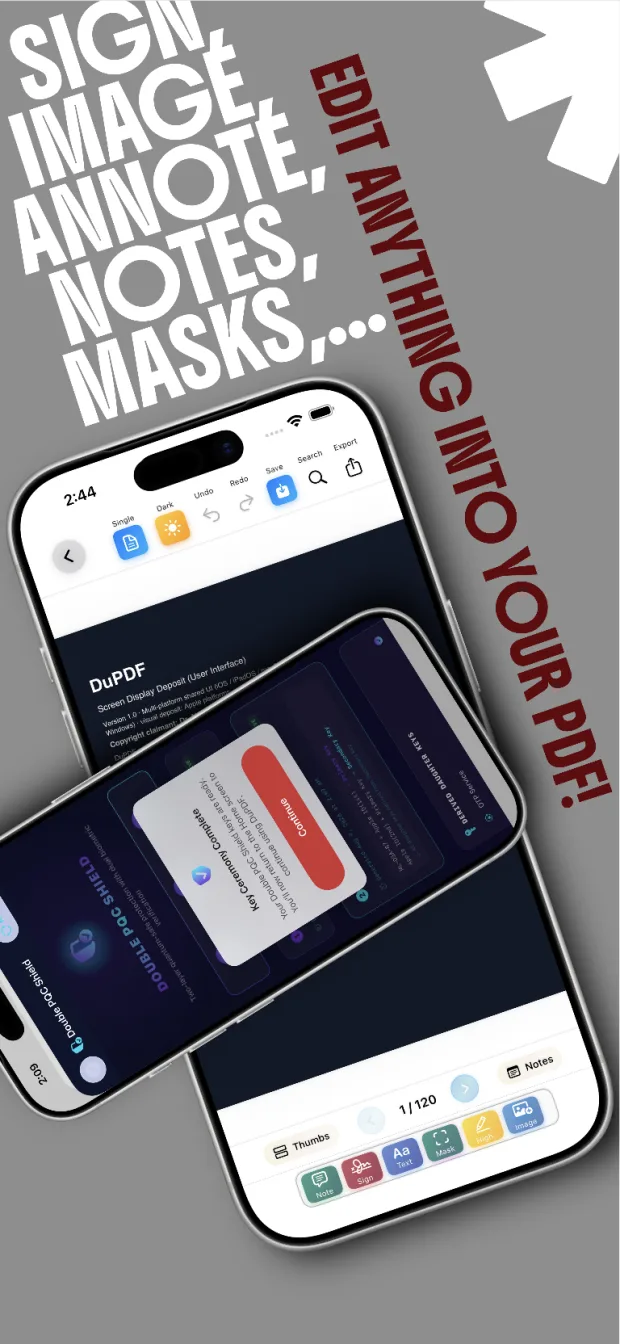
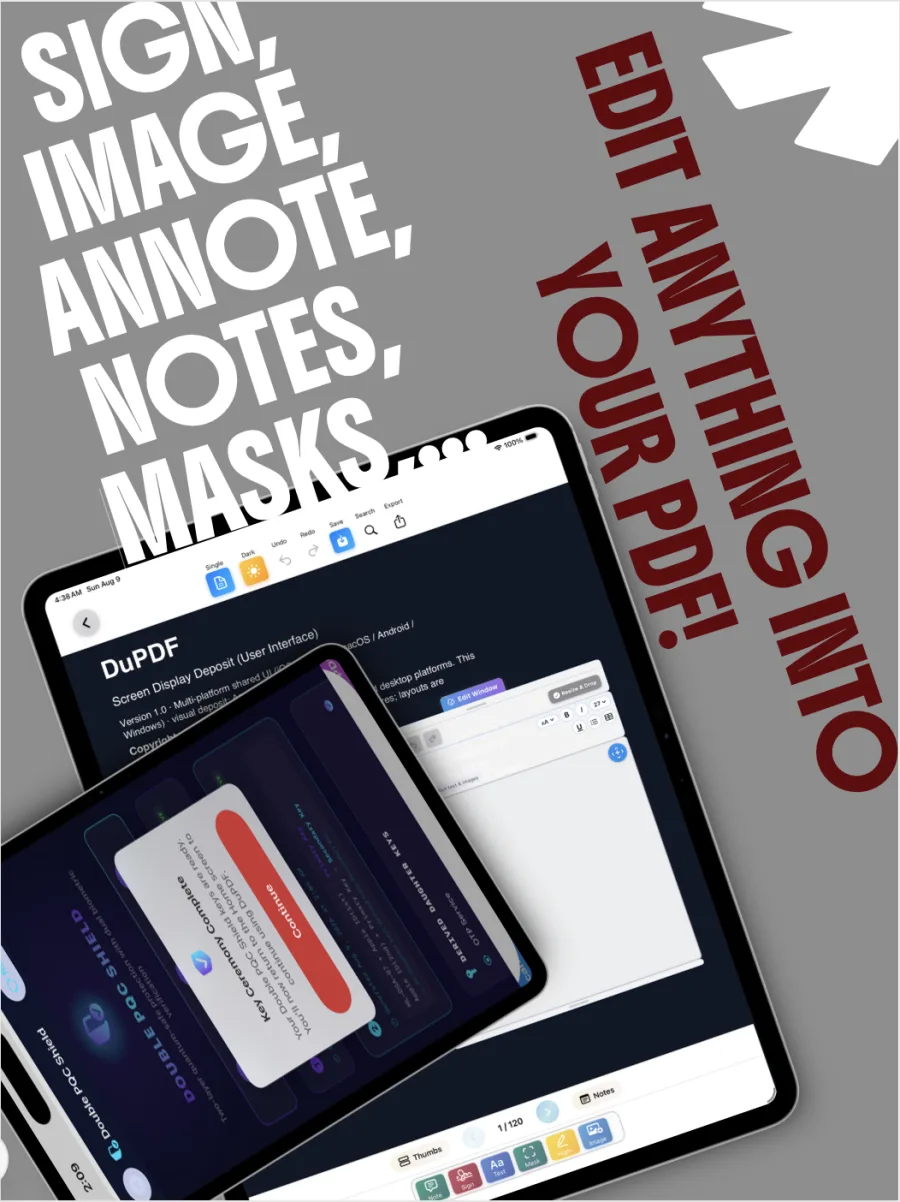
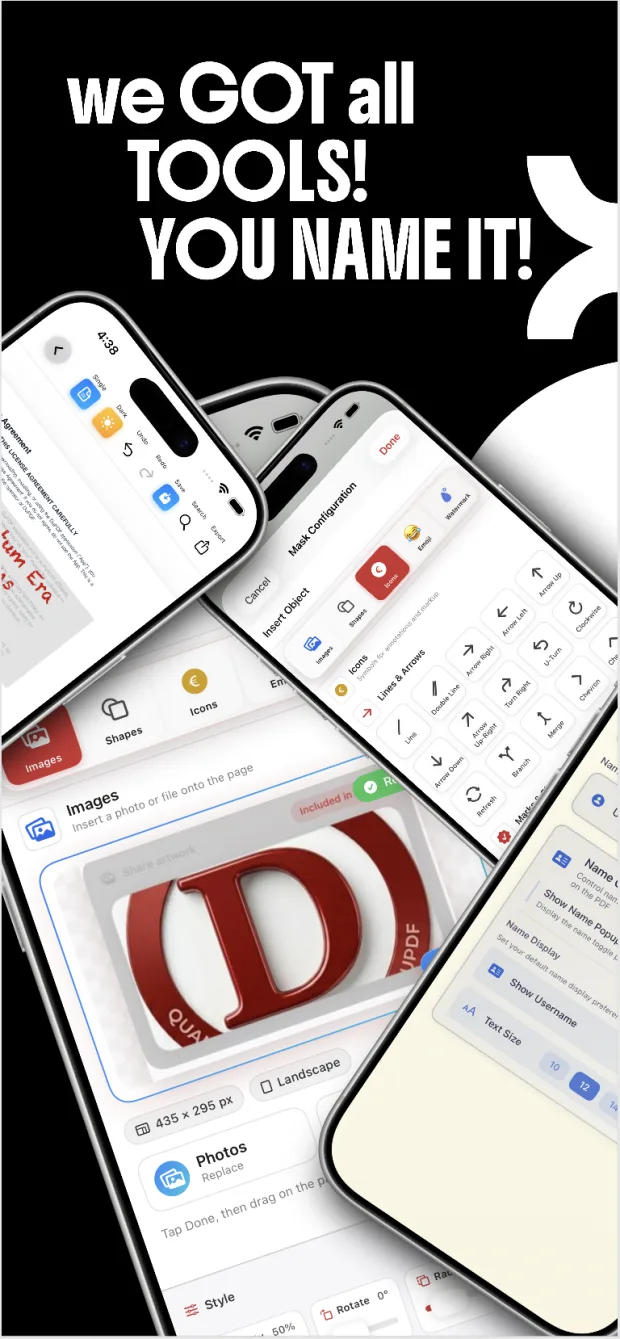
Sign, image, annotate, notes, masks.
Edit anything into your PDF.
The full reader and annotation canvas: sticky notes, signatures, inline text, highlights, redaction masks and image insertion — with thumbnails, search and a notes panel that stays tied to the page.
- Six editors on one strip. Text Note, Signature, Text, Highlight, Mask, Insert Image. One tool at a time; Exit returns you to reading.
- Continuous or single page. Pinch to zoom, drag to pan, hide chrome by scrolling down.
- Save vs Export. Save writes the working copy in your library. Export opens the system share sheet.
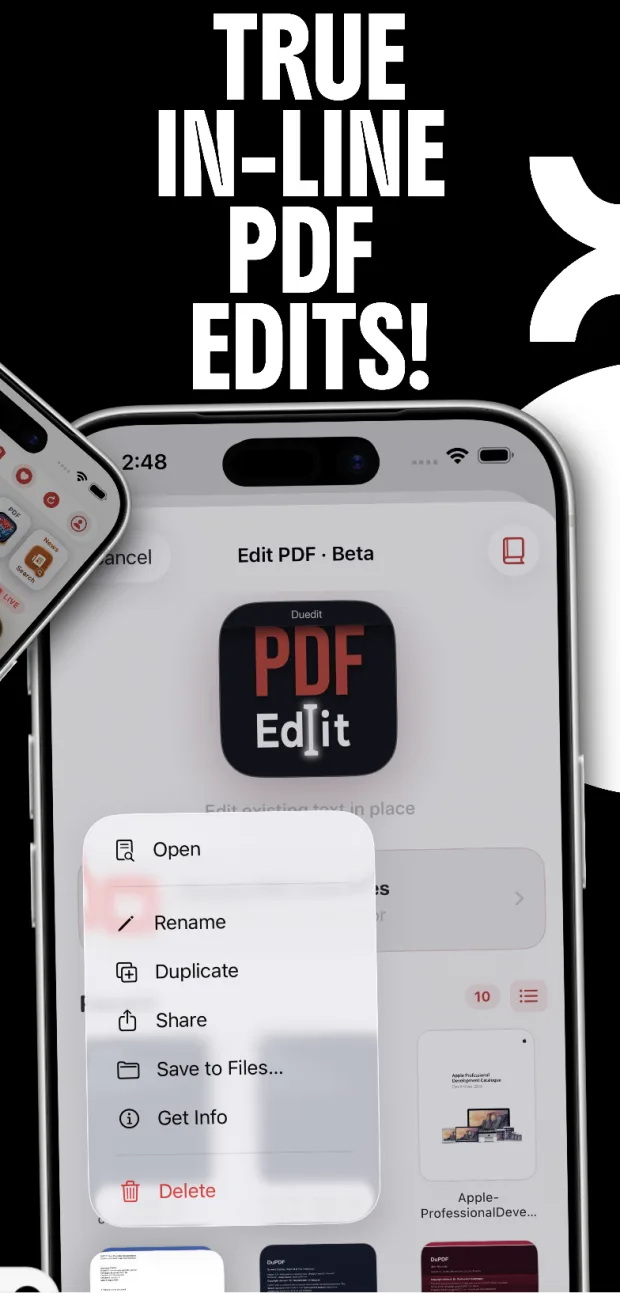
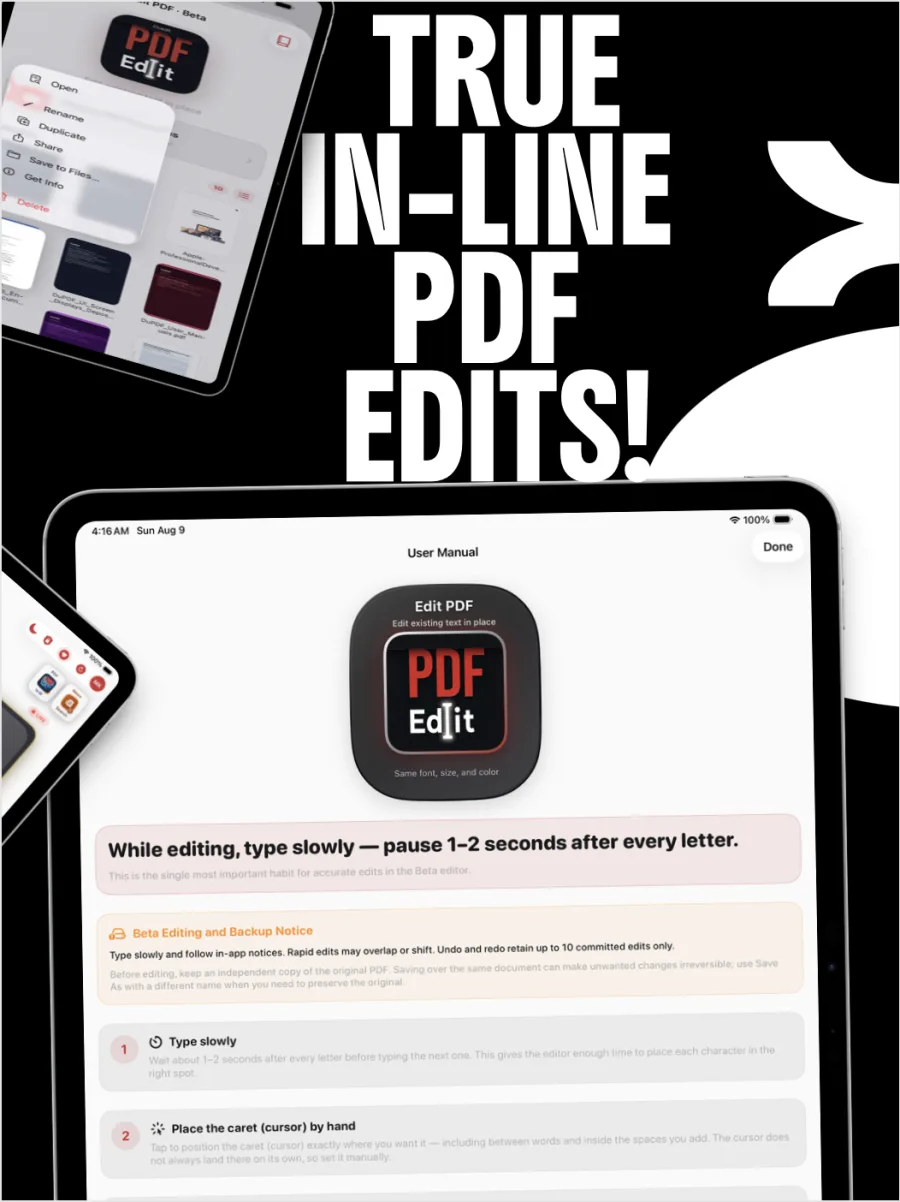
True in-line PDF edits.
Change existing text in place.
Duedit is not another overlay box. It targets the text that is already on the page. Type slowly, place the caret by hand, and keep an original copy — this is Beta, and we tell you exactly how to use it.
- Pause one to two seconds after every letter so the engine can place each character.
- Undo and redo cover up to the last 10 committed edits.
- Save As with a different name before you experiment. Saving over the same file can make unwanted changes irreversible.
Users are strongly encouraged to read the Edit PDF Text manual before first use. Rapid or inexperienced editing may cause overlapping or displaced text.
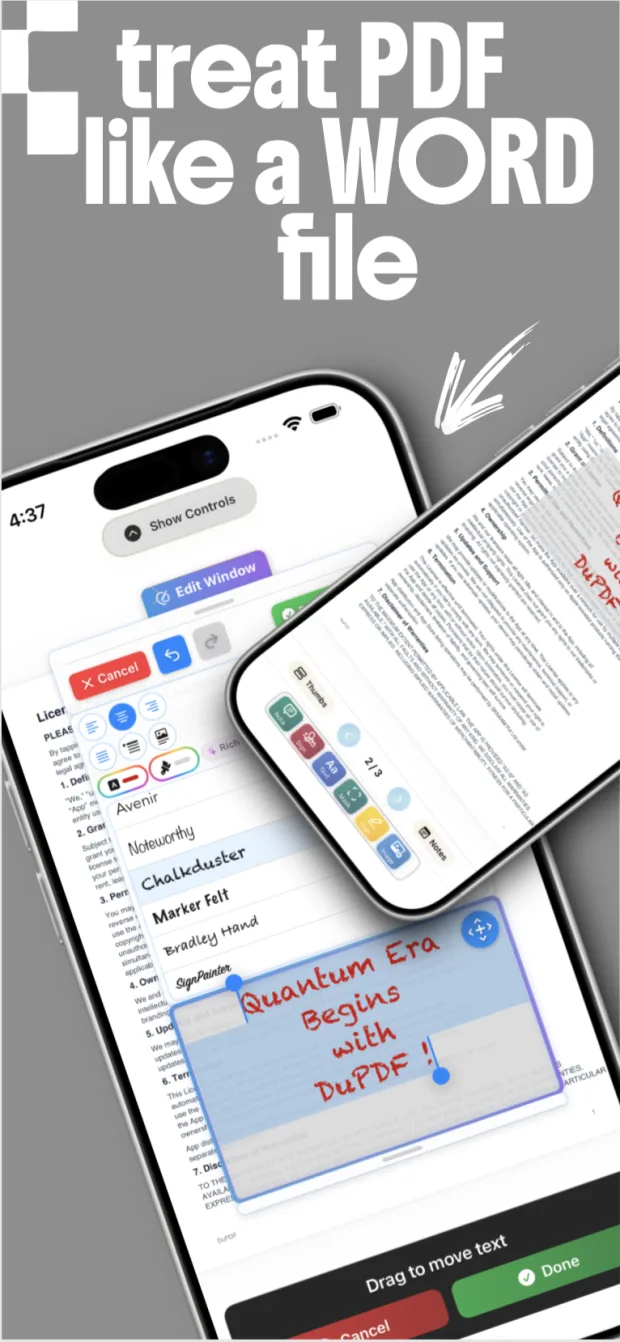
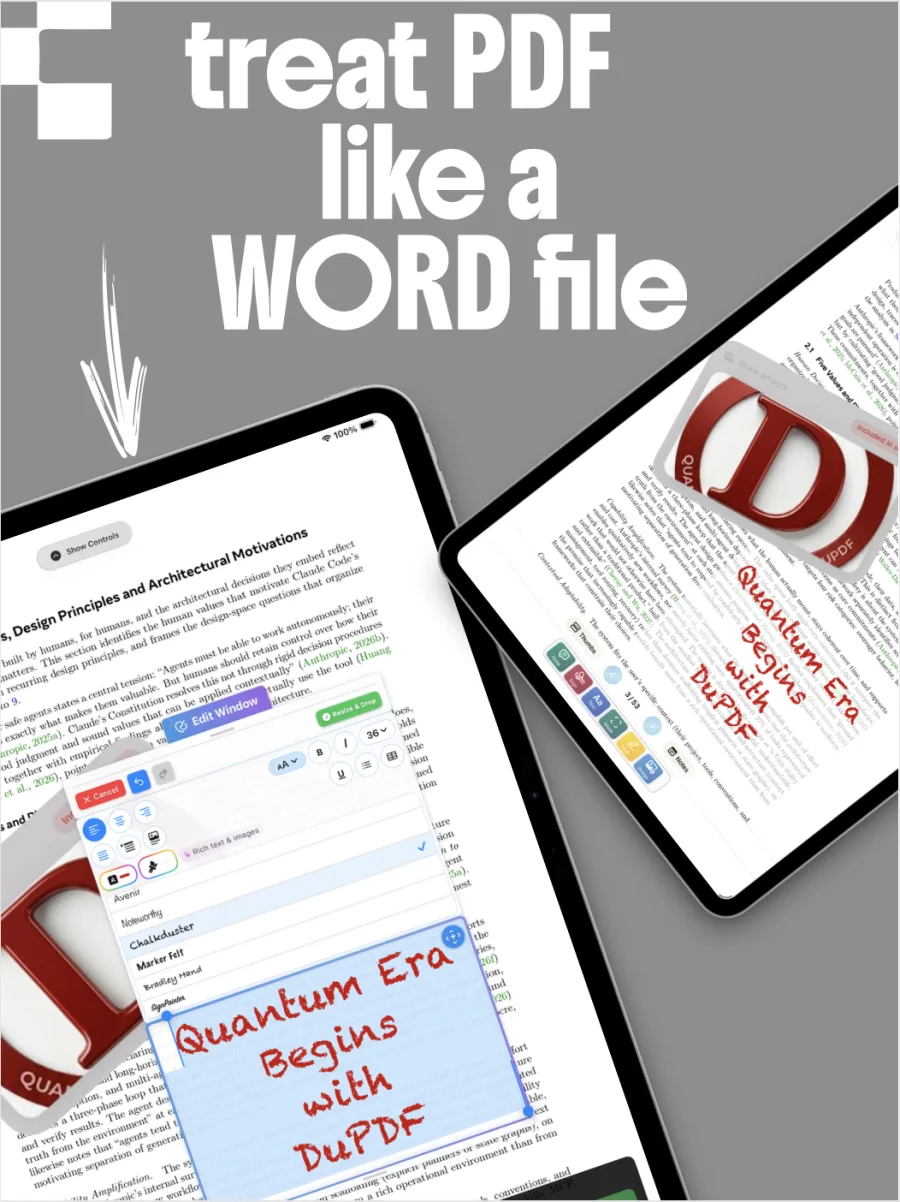
Treat PDF like a Word file.
Fonts, lists, tables, spacing.
The Edit Window sits over the page as a floating, WYSIWYG canvas. Drag it. Type in it. Then Resize & Drop to place the box exactly where the document needs it.
- Character style. Bold, italic, underline, alignment, professional and decorative faces, 10–48 pt.
- Color. Auto contrast against the box background, or a manual palette with opacity.
- Structure. Line and paragraph spacing, bullets and numbered lists, insertable tables.
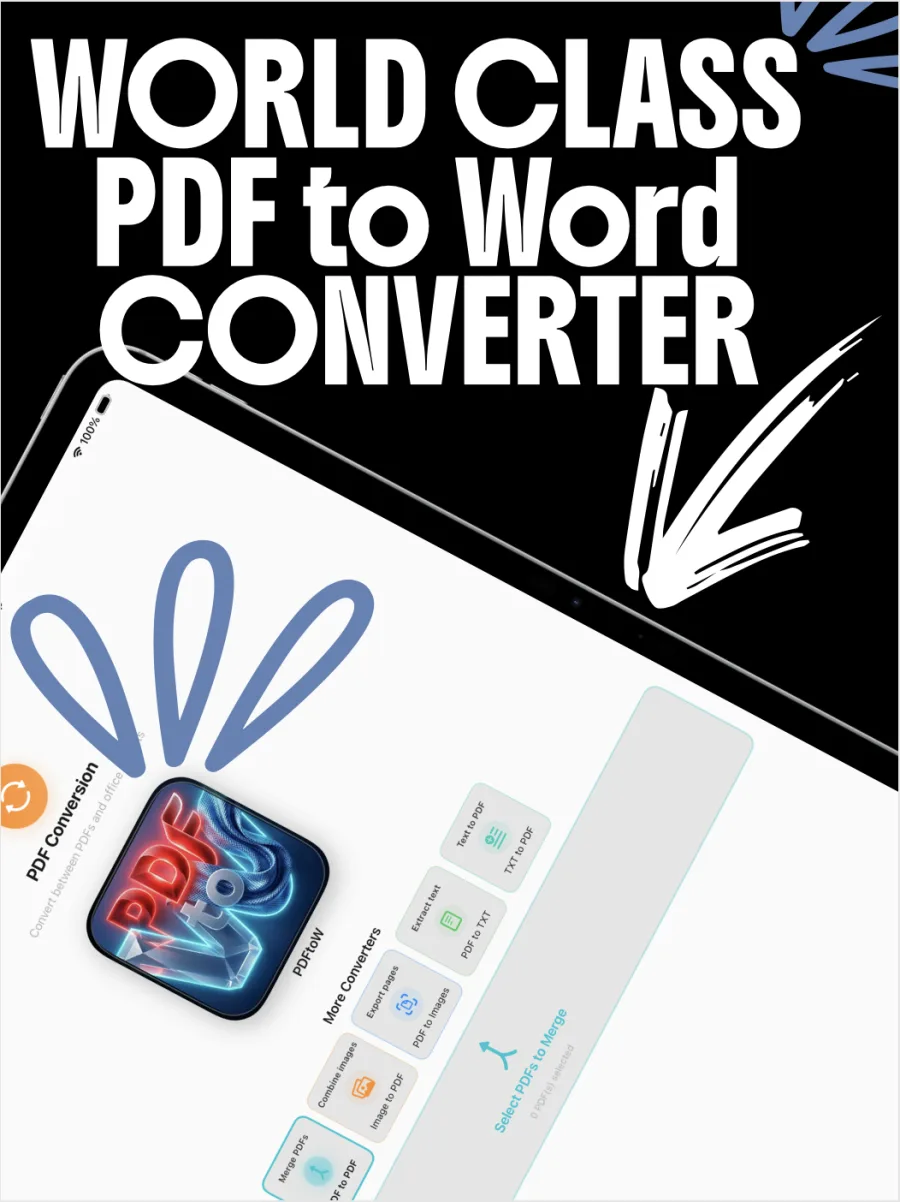
World class PDF to Word converter.
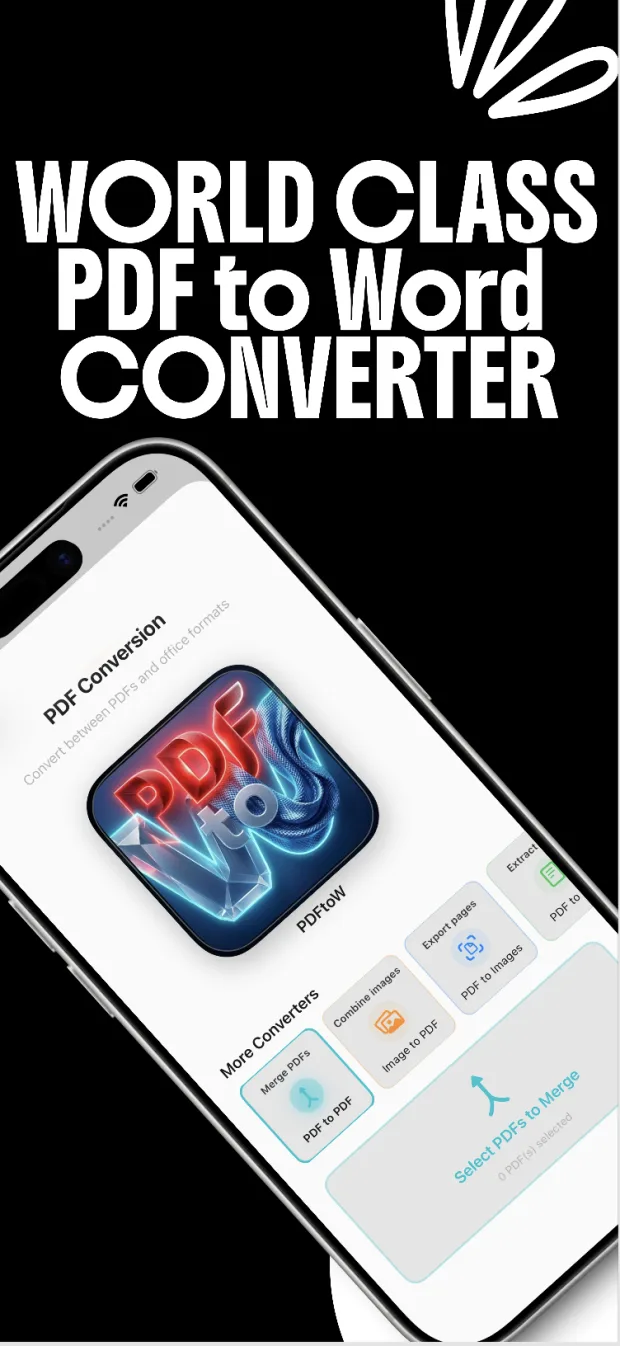
PDFtoW, and the rest of the rail.
Convert between PDFs and office formats without a cloud round-trip. Merge, combine images, export pages, extract, lock, unlock and compress sit on the same conversion canvas.
- PDFtoW. PDF to Word and back, on device.
- More converters. Merge PDFs, images to PDF, PDF to images, extract page ranges.
- Inspect before you publish. In some conversions, figures can sit beneath text boxes. Look behind them.
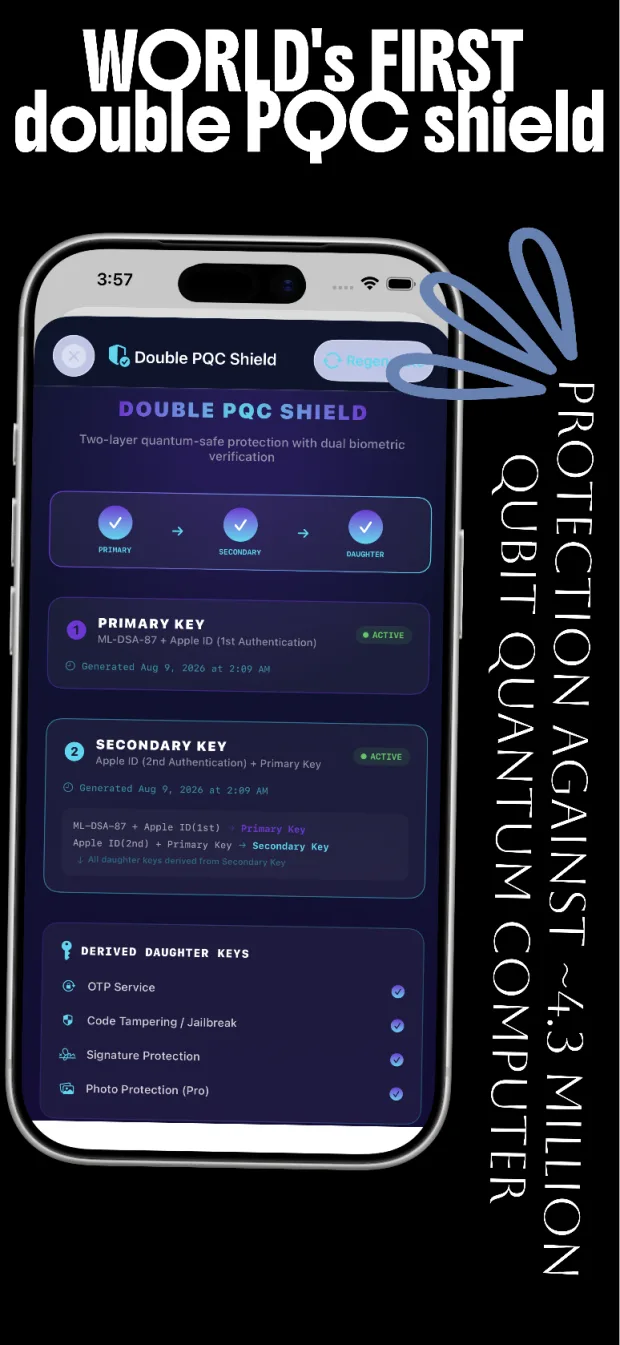
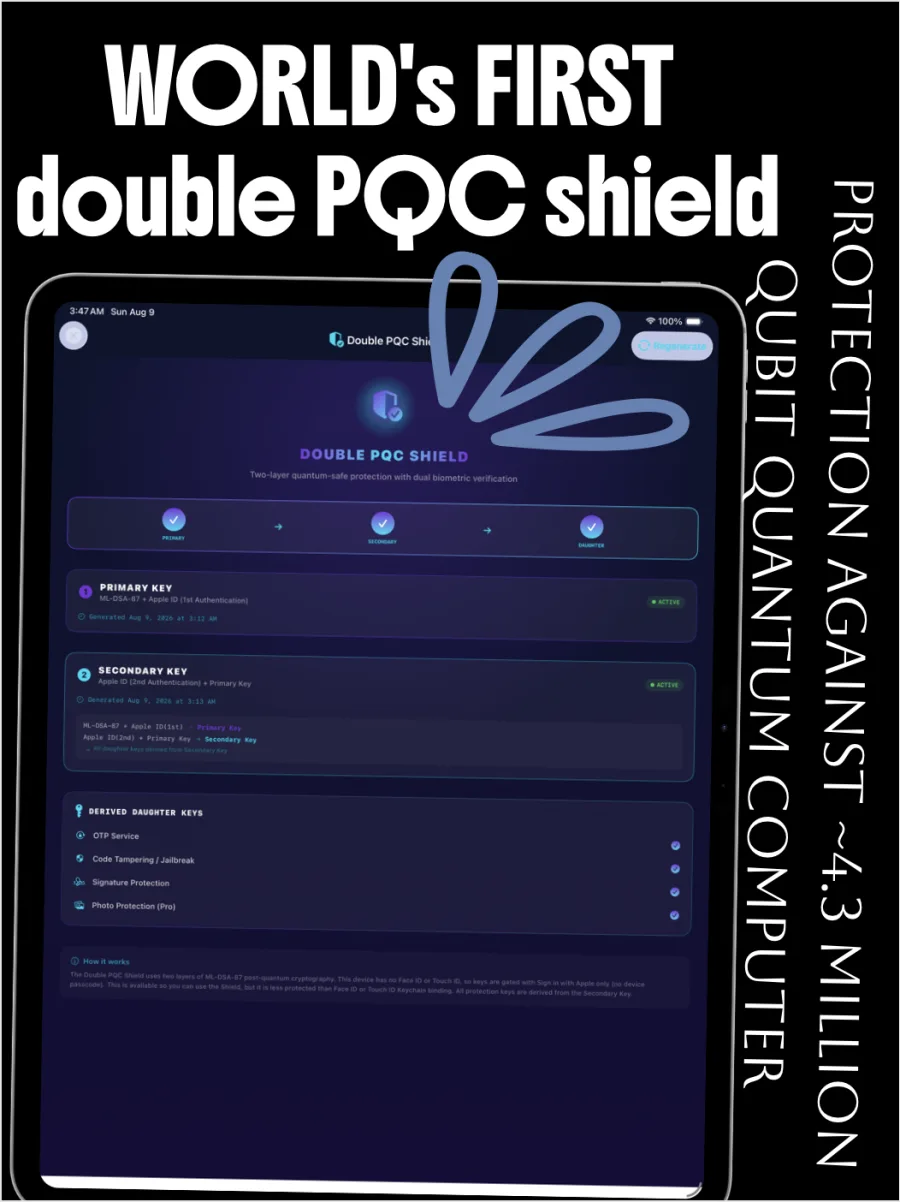
Double PQC Shield.
Two-layer quantum-safe protection with dual biometric verification.
A primary ML-DSA-87 key bound to your first Apple ID authentication. A secondary key that can only exist if the primary already does. Daughter keys for OTP, integrity, signatures and Photo Protection — all derived from the secondary.
Designed against classical attacks at any scale, including state-level supercomputers, and against quantum adversaries in a ~4.3 million physical-qubit threat model.
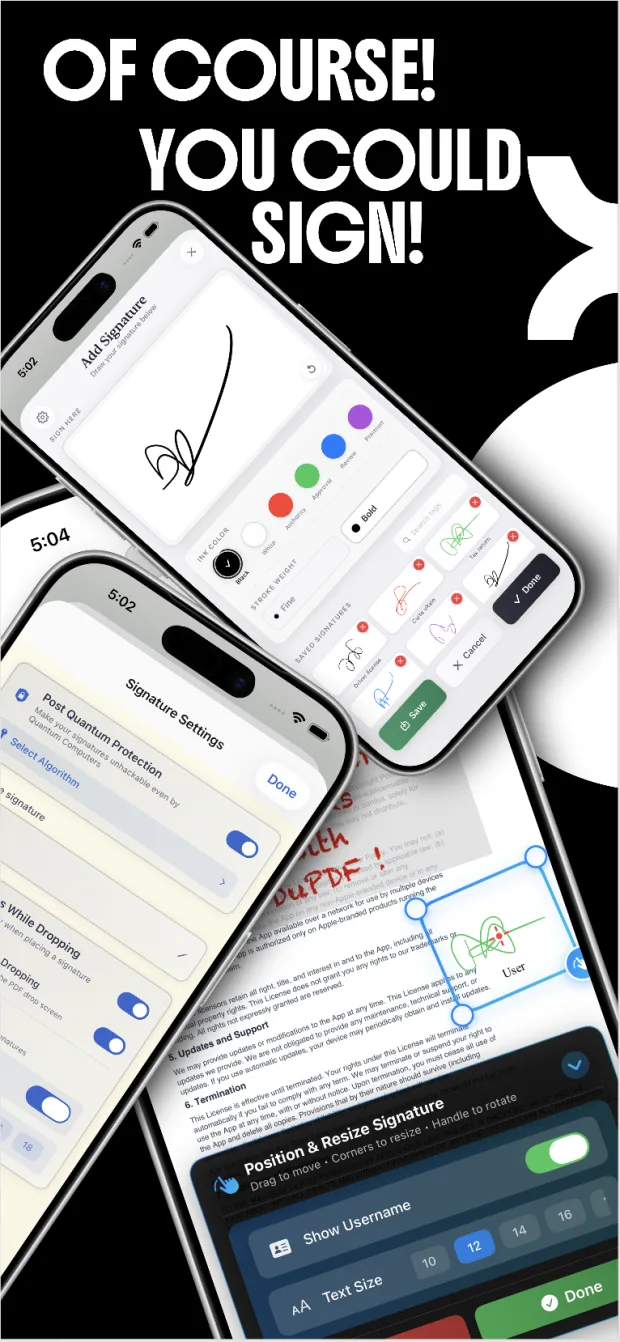
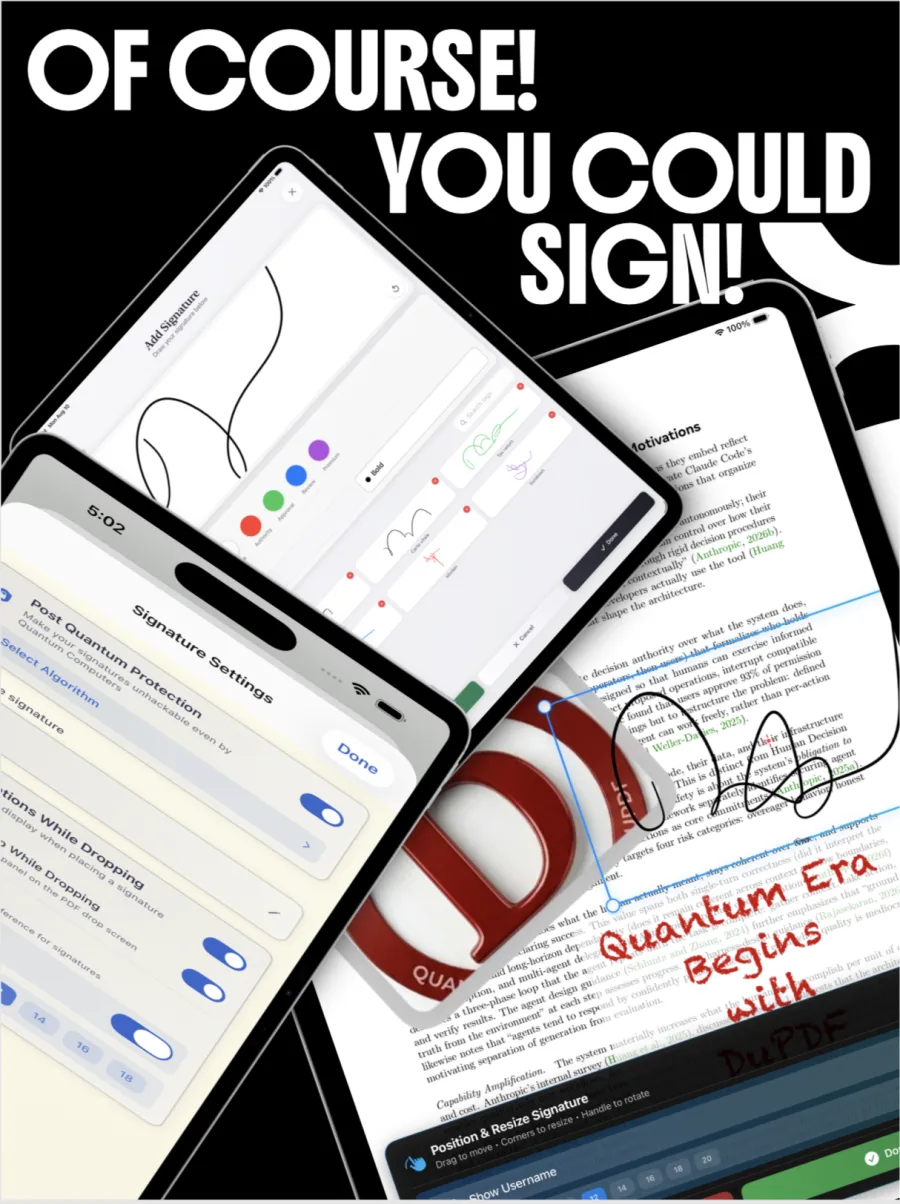
Of course you could sign.
Draw, save, place, resize, rotate.
Ink colors for Authentic, Approved, Review and Premier. Stroke from Fine to Bold. A gallery of saved marks for a driver license, a tax return, a carte vitale. Then drop onto the page with corner handles and a rotate grip.
- Post-quantum protection on signatures, under the Double PQC Shield. Signing requires you to be authenticated.
- Optional username and timestamp when placing a mark.
- Your signatures stay on device inside the sandbox. We never collect them.
100% quantum ready photos too.
Crop, filter, cut out, protect.
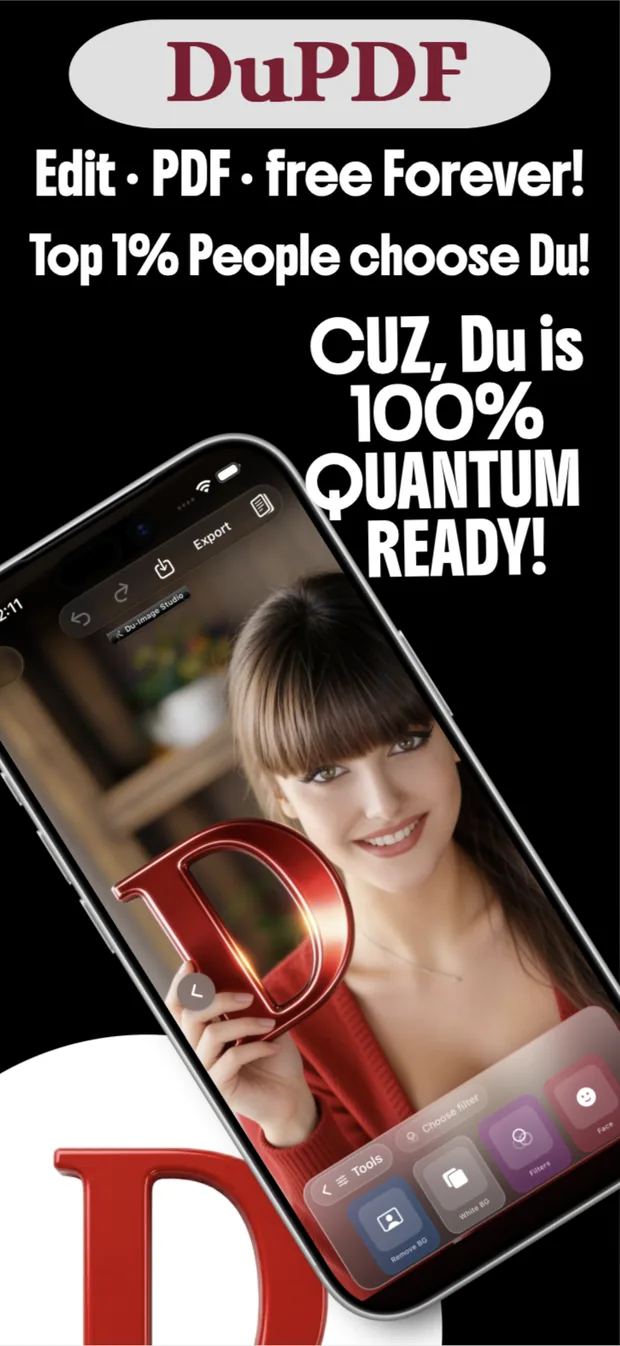
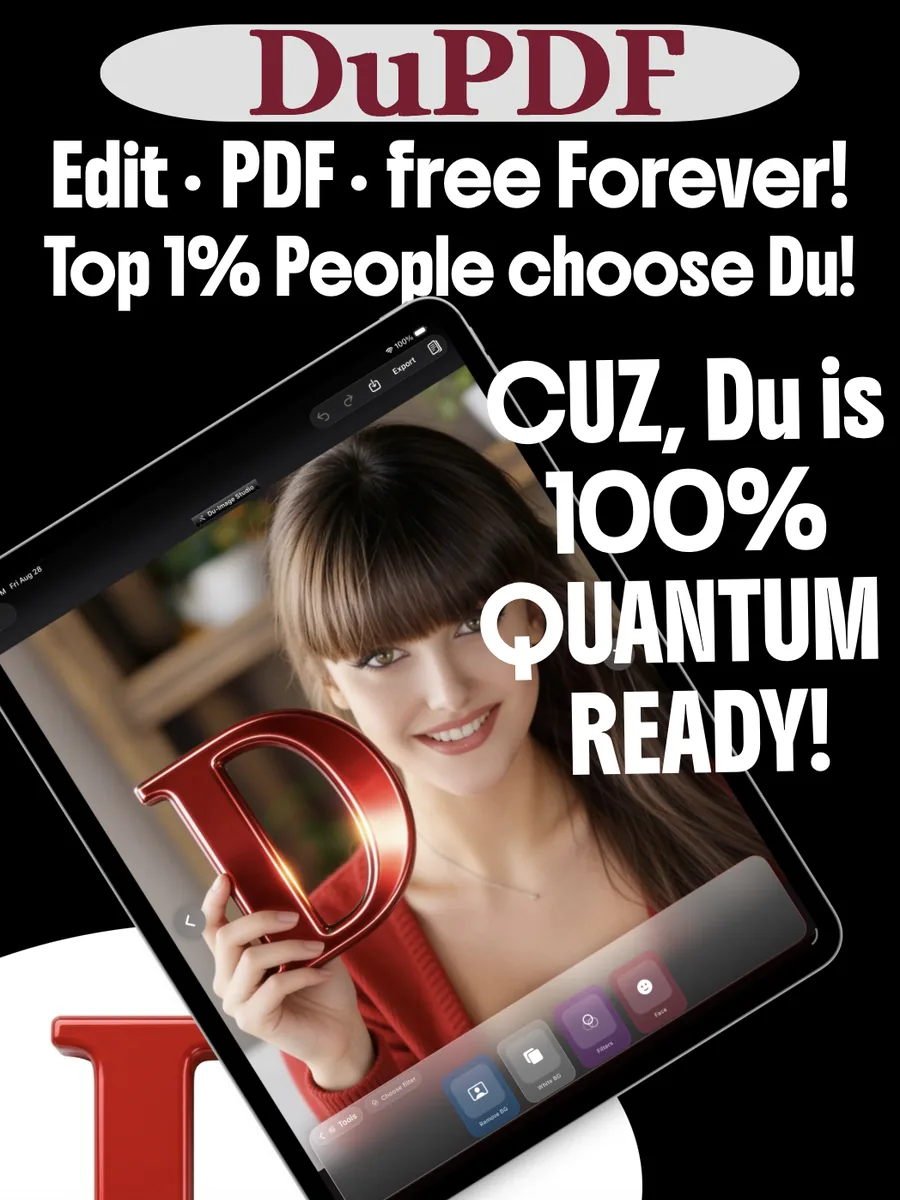
A full-screen editor for scans and photographs. Doc crop with four-corner perspective. Freehand and polygon cut-outs. Eight silhouettes. Document filters, photo filters, face tools, background removal — and Photo Protection under Ultra Pro.
- Doc Crop. Auto Detect, grid, magnifier, perspective flatten.
- Shape cropper. Rectangle, circle, elliptical, triangle, L, T, cup, polygon.
- Filter workspace. Remove BG, White BG, classic looks, Face (Smooth, Whiten, Makeup).
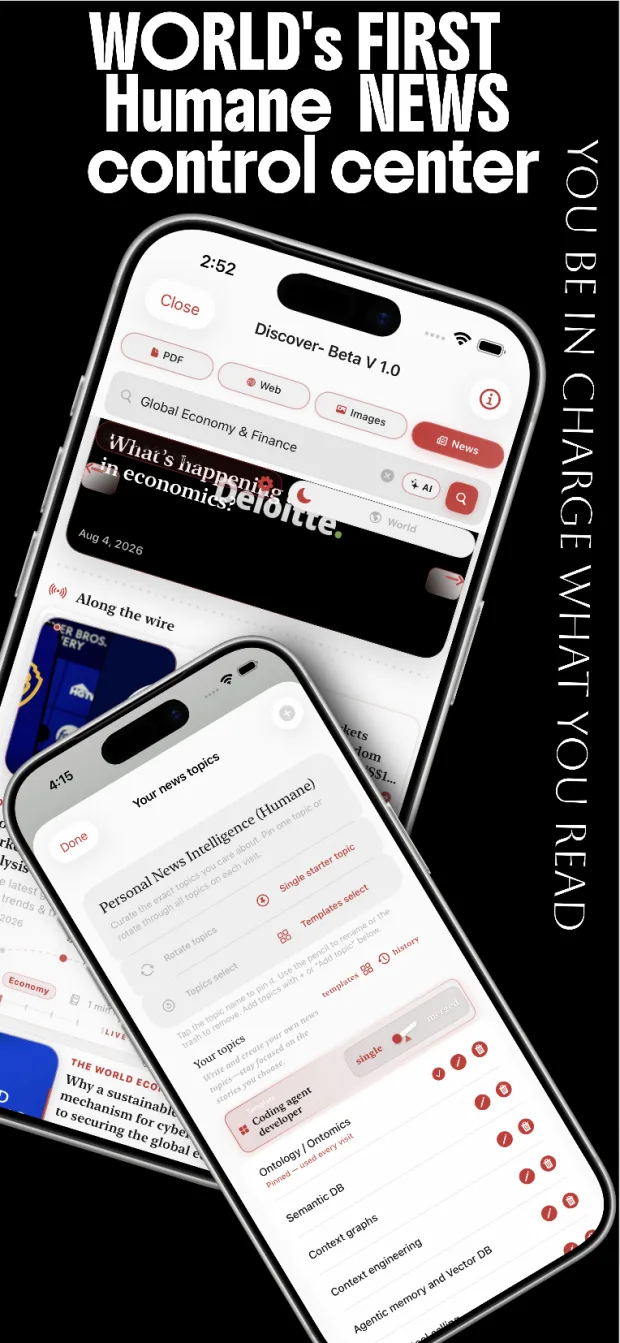
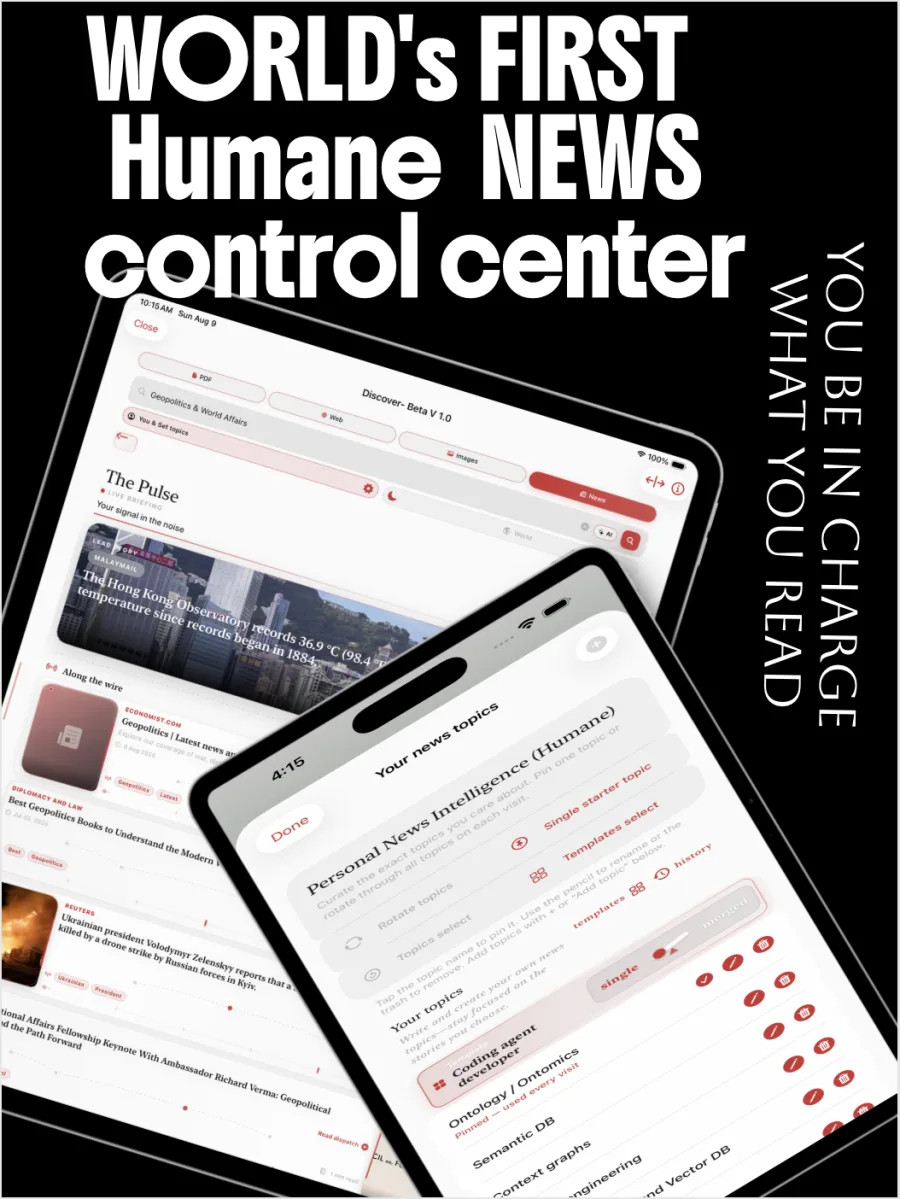
World’s first humane news control center.
You be in charge of what you read.
Pin the topics you actually care about. Rotate them, or lock a single starter. Search across PDF, web, images and news from one bar. Trends live in a luxury card rail — not an infinite scroll that owns your evening.
- Personal News Intelligence. Curate, pin, reorder, remove. Templates and history included.
- Family-aware filtering on search results, with an honest limit: no automated moderation is perfect.
- Parents should supervise search use by minors, especially children under 10.
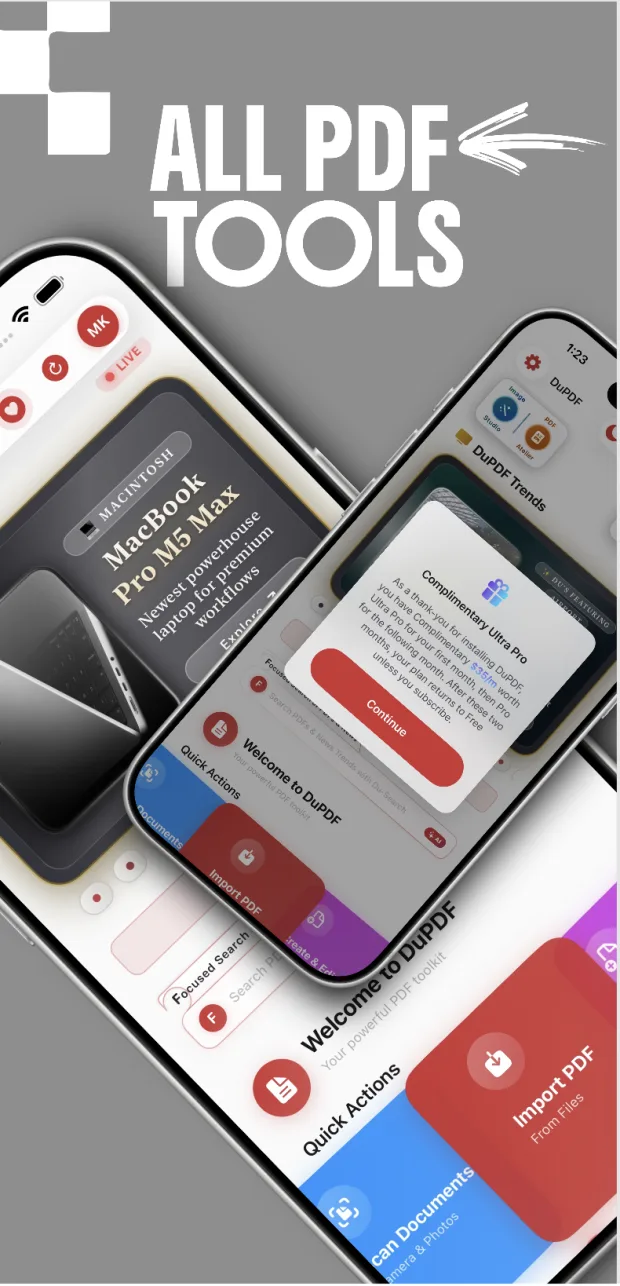
Home is a workshop, not a file list.
Scan from camera or photos. Import from Files. Jump into Image Studio, PDF Atelier, PDFtoW and News. Complimentary Ultra Pro for 30 days on first install, then complimentary Pro for 30 days; the core toolkit stays free forever.
 PDF to WordPDFtoW conversion engine
 Edit PDF textChange existing text in place
 Lock PDFPassword-protect a document
 Unlock PDFRemove a password you own
 Compress PDFShrink files for sharing
Merge & combineStitch PDFs and images
Masks, shapes, iconsWatermarks and objects
Scan documentsCamera and Photos
Compress PDFShrink files for sharing
Merge & combineStitch PDFs and images
Masks, shapes, iconsWatermarks and objects
Scan documentsCamera and Photos
Cuz Du is 100% quantum ready.
Edit, sign, convert and protect — entirely on your iPhone or iPad. Free forever.
Official download: Apple App Store only. We never email an IPA or APK, and we never send you to a third-party store.